
How-to
These simple walk throughs will break down how to do the primary everyday activities involved in adding content to your website. We also maintain a fequently asked questions section and if you feel we could add any usful content, please let us know.
Quick Introduction
How to Login
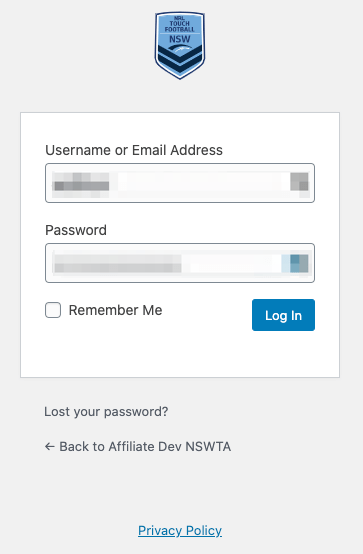
First the easiest part. Just like any standard WordPress website the backend is accessed by adding /admin to the end of the website domain name.
For example if your website domain was;
https://affliatename.nswtouch.com.au
You would login at;
https://affliatename.nswtouch.com.au/admin
You will need to use the email account already setup for you by us as we centrally maintain this list, but there is no limit to the number of users that you want to add to your site. Also if you forget your password simply follow the ‘Lost your password?’ link under the login diolog to have a reset link emailed to you. If you don’t have access to the email account or have any other issue that you can’t resolve, contact us on support@boodigital.com.au.
How to Edit a Page
Backend Page editing
Front End Page editing
Once you are logged in you will be able to edit pages on the standard backend editing interface farmiliar to most WordPress users. You can also enable the Divi Visual Builder with drag and drop module building and inline text editing. Even if you don’t know every module or component we make available, understanding the basic mechanics and following the help guides will allow you to keep your site updated without needing to do any coding.
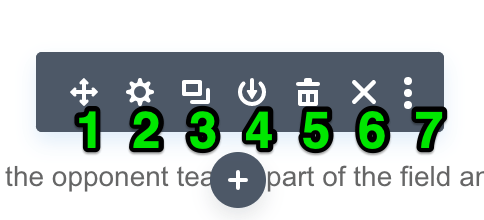
- Move Module – This allow you to drag and drop the selected module around the page. While dragging the module you can see a faint black box of where the module will be placed on the layout if you release the mouse button.
- Module Settings – this is the most variable and useful icon as you can modify all the content and settings of a particular module, and if relivante there may be sub-modules made available in these settings.
- Duplicate Module – This will make a copy of the particular module with all the same styling and content. This wors the same for modules rows and sections so can be a real time saver.
- Save Module to Library – As well as duplicating any content on the same page, you can save the content into a site library to re-use on any other page.
- Delete Module – Removes the current module and any content contained. Pro-tip you can Undo any change while you have the page in edit mode with ctrl + z (or cmd + z) or clicking on the Editing History icon.
- Exit Module – Simply closes the dialog and lets you select another module or section on the page.
- Other Module Settings – Lets you do more advanced things like reset the module or copy the module styles.
Create a New Page
Creating a New Page
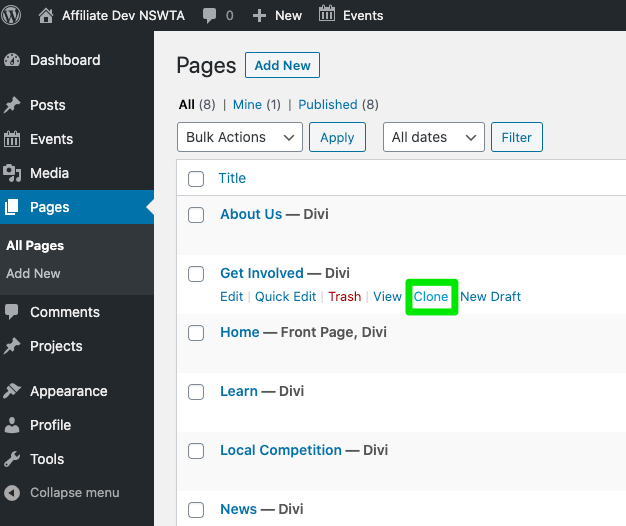
As well as creating a new page from scratch you will be able to Clone any page and then edit the duplicated content without affecting the original page. Just make sure that the Page title and slug (the URL in the quick edit and page properites) is unique and relivant.
Post a News Item
Editing and working with news Posts is almost identical to editing pages and you can use the standard page editor or the Divi Visual Builder. For most content it’s easy to keep it simple and the only major features to remember are to add a Featured image, set any Categories and Tags and to have accurate a publish date. These are all used in the module settings such as putting the featured image as the thumbnail or sorting the news chronologically based on the Published date.
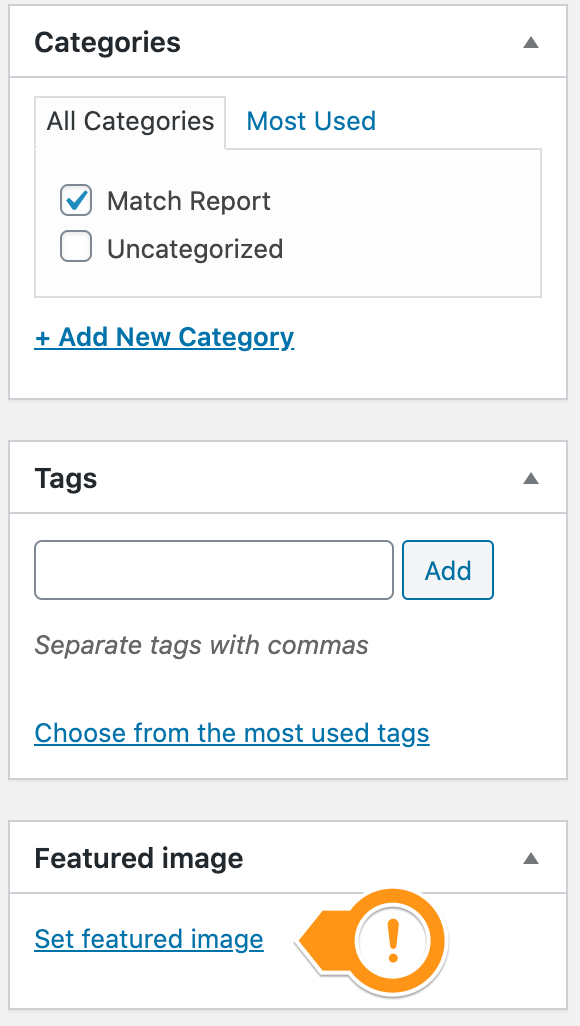
Post editing features
Create an Event
Creating and editing events
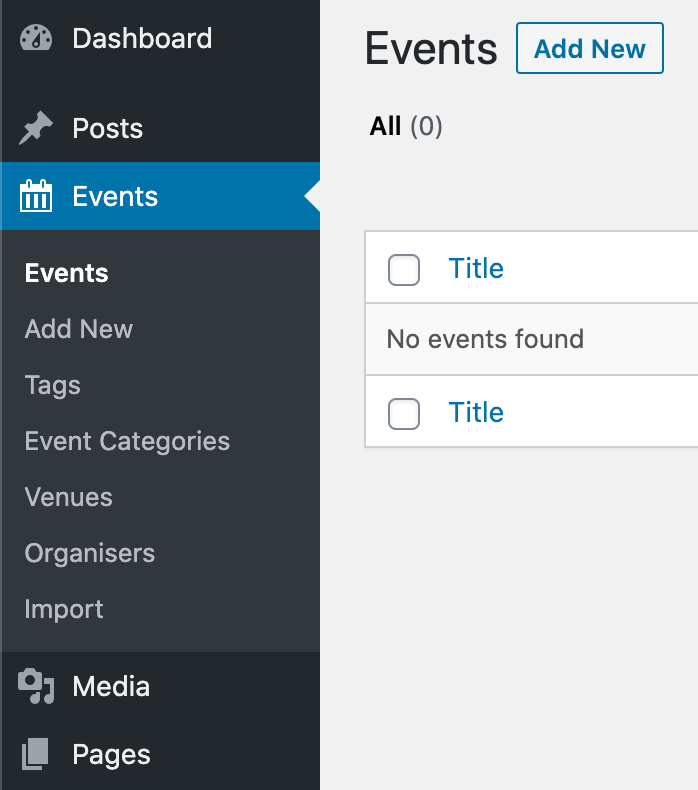
Events are like News Posts but have extra information such as Venue and Organisers. You can set and save common information such as Venue and reuse this when creating new events. Also this is integrated with Google Maps and will also generate meeting ical or google calendar links so your visitors can save the dates without having to enter any additional information.
Edit the Main Menu
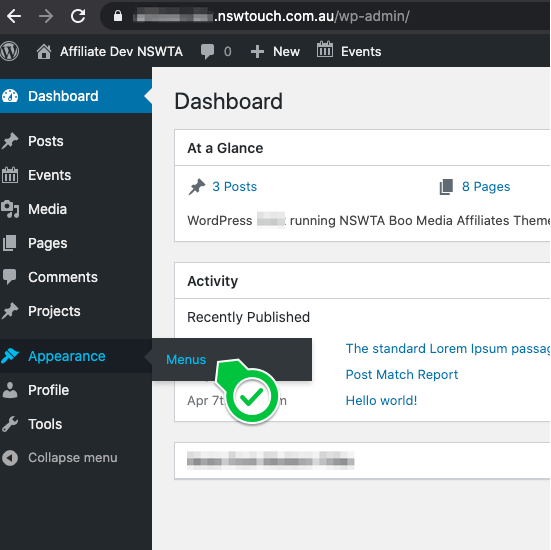
Editing the menu is available in the Appearance section of the Dashboard.
You can add pages or any site content as well as links to 3rd party sites or content.
For more details on how to use the edit interface see: https://wordpress.com/support/menus/